
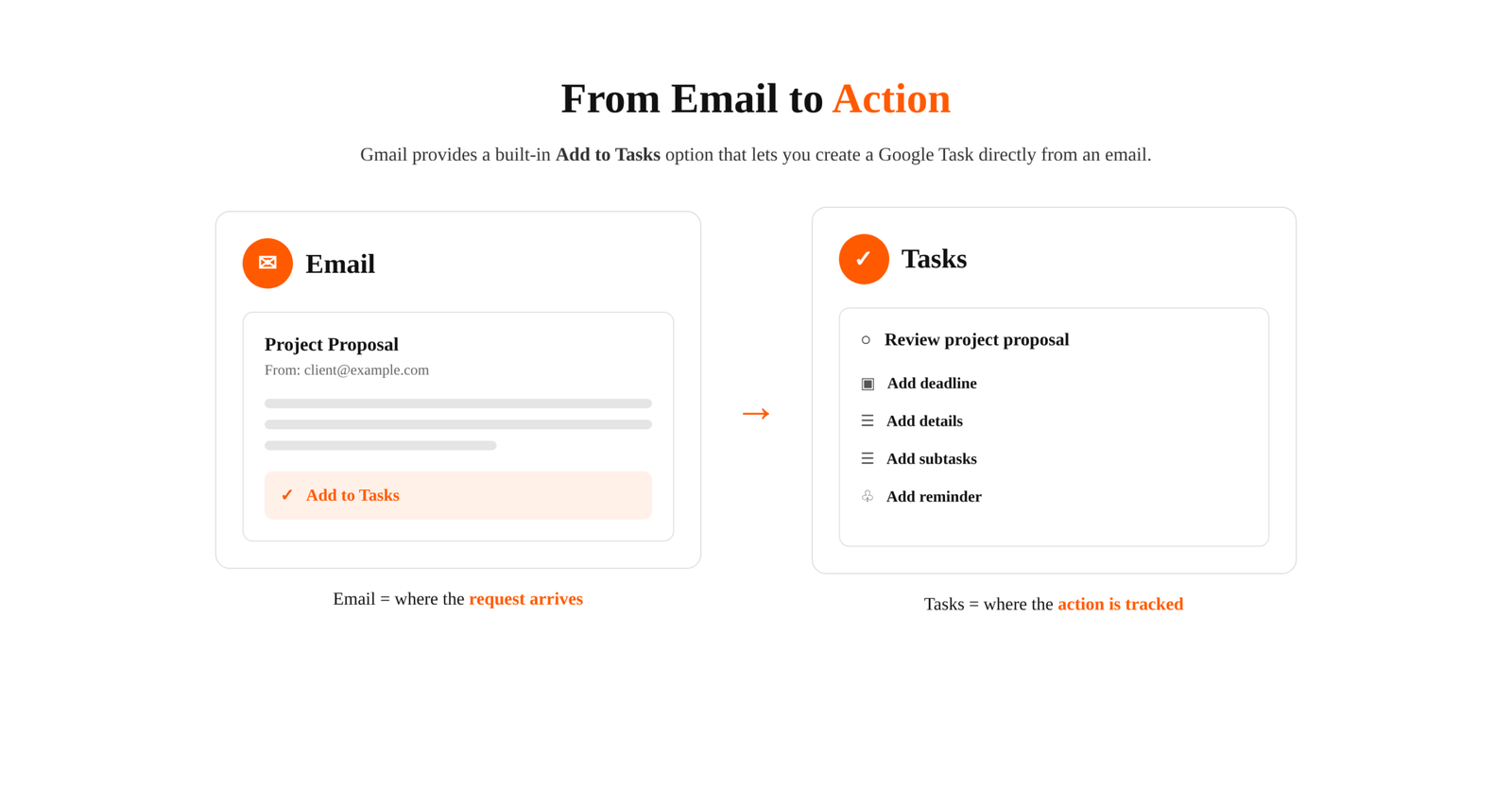
Gmail includes a built-in feature of transforming your immediate actionable emails into Google Tasks.
A single email can contain a client request, an approval, a deadline, a sequence of tasks that needs an action, a question or a follow-up that needs to happen later.
The challenge is keeping track of these actionable items once they become mixed with the rest of your inbox. As new messages arrive, you get overwhelmed scrolling through old conversations, searching for specific requests, starring important emails, or reopening threads just to check whether something got missed.
This constant back-and-forth can make even simple tasks difficult to track and consume time that could be spent on more productive work.
This is why knowing how to turn emails into tasks can make a real difference.
From our experience in managing inboxes and day-to-day administrative work for business owners as executive and personal assistants, we have seen how easily important requests can get lost among routine emails. The solution is not necessarily to process more emails, but to extract actionable work from ordinary messages and track it in a more structured way.
This guide will help you identify actionable emails then convert those into individual tasks, so that your workload gets managed.
How Converting Gmail Emails Into Google Tasks Improves Your Workflow
An email and a task may come from the same piece of information, but they serve different purposes.
An email is primarily a record of communication. It can contain a conversation, attachments, instructions, questions, and other context. A task, on the other hand, represents the specific action that needs to be completed as a result of that communication.
We will be referring the following example email throughout this article also you will see the images contain the same referenced email body:
“Please review the attached proposal, check the pricing, and send me your feedback by Thursday.”
This message contains several actionable items. Instead of leaving the email in your inbox and relying on your memory to revisit it later, you can extract those actions and create a Google Task: Review proposal, check pricing and send feedback
The original email remains available for reference, while the task gives you a clear view of the action you need to take.
This becomes particularly useful when you receive long or detailed emails. Rather than repeatedly reopening the same conversation, extract the essential action items and represent them as individual tasks when they need to be tracked separately.
When you consistently turn actionable information from your emails into trackable tasks, your workflow becomes structured. You start meeting more deadlines and feel less stress. This approach is especially useful for people who manage large volumes of client communication, follow-ups, and administrative requests, such as email management.
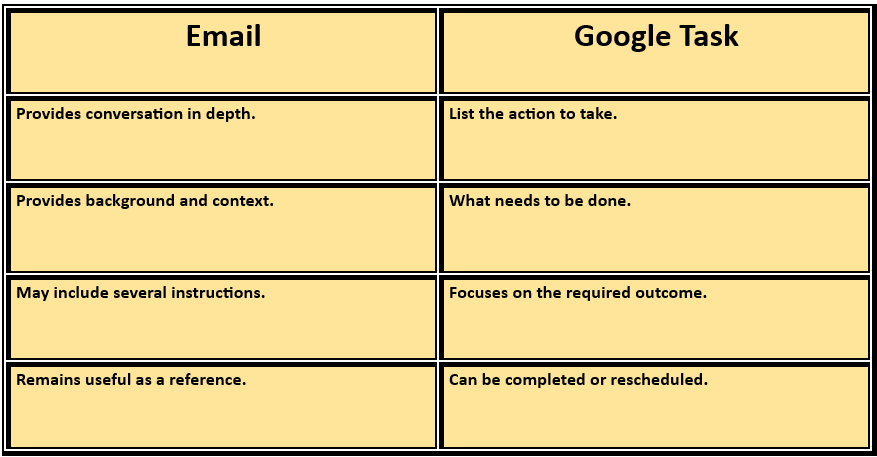
When actionable emails remain mixed with ordinary messages, you have to repeatedly scan your inbox to determine what still needs attention. Turning the required action into a task separates communication from execution.
This means you do not have to treat your inbox as a running to-do list.
What Happens After You Create the Task?
When you use Gmail’s Add to Tasks option, the email becomes the starting point for a Google Task. You can then manage that task separately from your inbox.
For example:
Original email:
“Please review the attached proposal, check the pricing, and send me your feedback by Thursday.”
Google Task:
Review proposal and send feedback
Task details:
- Check pricing and provide comments on the revised proposal.
- The email continues to provide the original context, while the task gives you a concise reminder of the action you need to take.
- This becomes particularly useful when an email contains several paragraphs of information but only one or two things actually require your attention.
The Key Idea
- You are not moving the entire email into a task-handling system.
- You are extracting the actionable work from the communication.
- That distinction is important. If you convert every email into a task, your task list will become just as cluttered as your inbox. Instead, create a task when an email contains an action that needs to be completed, monitored, or followed up.
Once you understand this distinction, it becomes easier to decide which emails should become tasks and which can simply remain in your inbox.
How To Turn an Email Into a Google Task in Gmail
Once you identify an email that contains a genuine action, the next step is to convert that request into a task you can actually manage. The process is simple, but a few small adjustments can make the resulting task much more useful.
Here is a practical workflow, from identifying the right email to creating a clear, actionable Google Task.
Step 1: Identify an Email That Requires Action
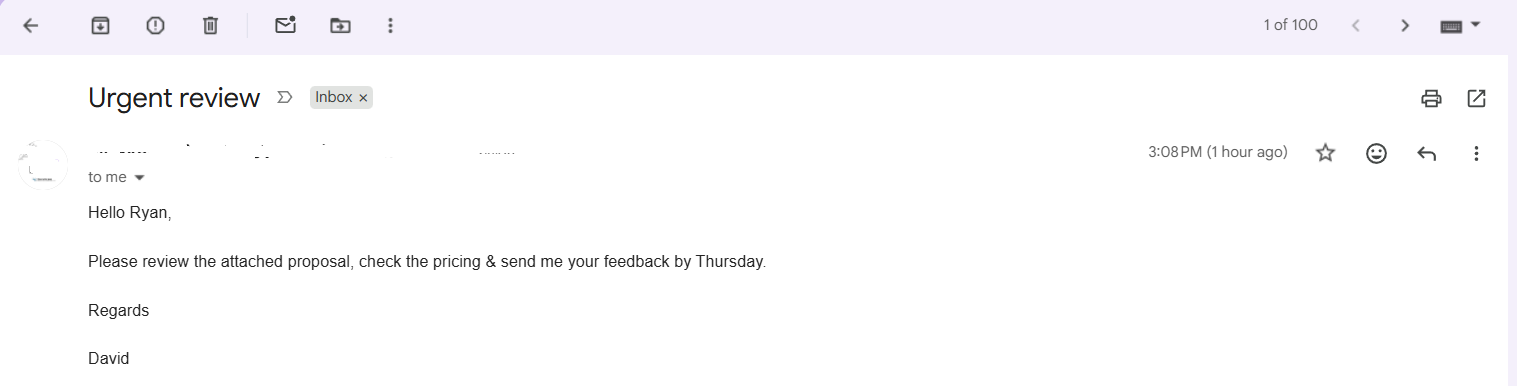
Not every email needs to become a task. Start by looking for language that indicates a request, responsibility, deadline, or follow-up.
Common signals include:
“Please send…”
“Can you review…”
“Please confirm…”
“Let me know when…”
“Please complete…”
“By Wednesday…”
“Follow up with…”
For example:
“Please review the attached proposal, check the pricing, and send me your feedback by Thursday.”
This email contains both an action and a deadline, making it a good option for a Google Task.
The objective is to identify the task residing silently inside the email, rather than turning every email into a task.
Step 2: Open the Email and Select “Add to Tasks”
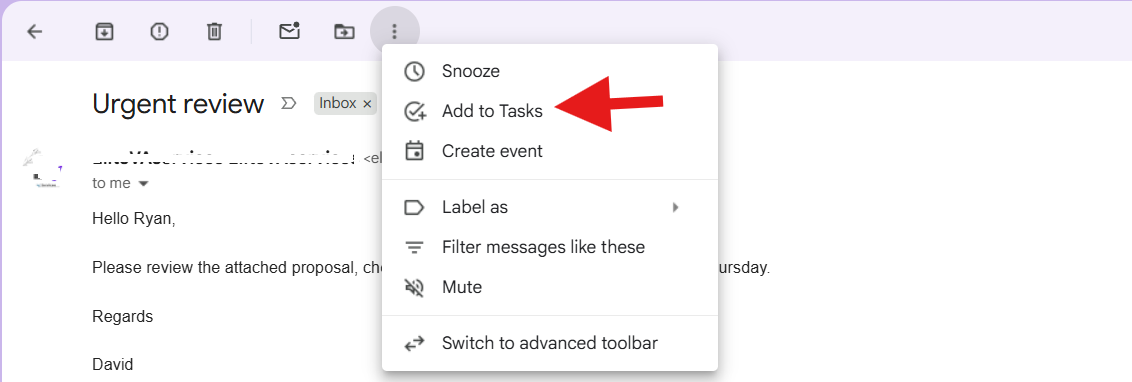
- Open the email that contains the request. In Gmail, click the Add to Tasks option to create a task . Check the above image.
- Gmail can also be used with the Google Tasks side panel, allowing you to add an email to your task list while keeping the message available for reference.
- Once the task is created, it becomes available in Google Tasks, where you can add or modify task information.
Step 3: Confirm That the Task Was Created
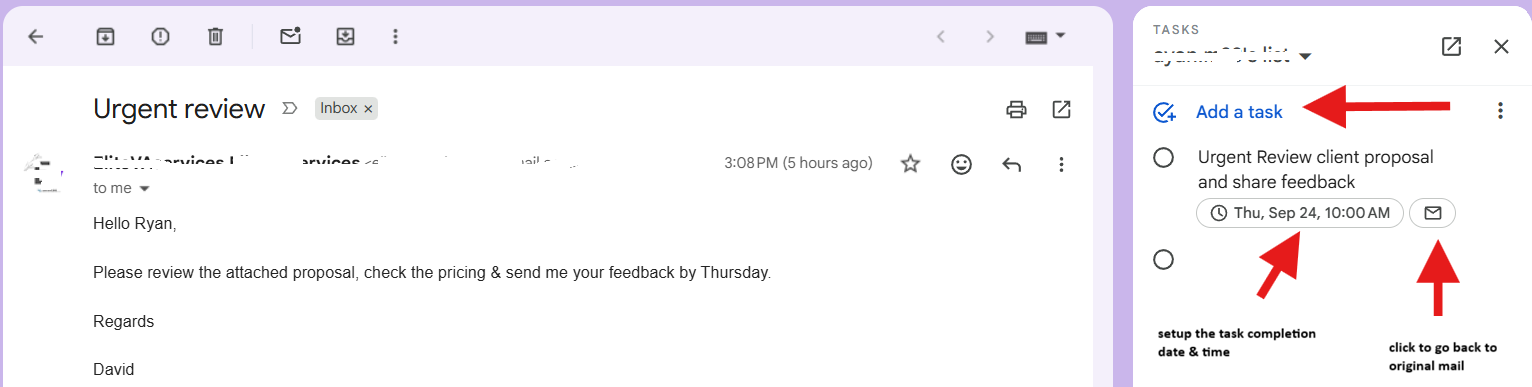
- After selecting Add to Tasks, check the Google Tasks panel to make sure the new task has been added.
- Gmail uses information from the email when creating the task, giving you a starting point rather than requiring you to create everything manually.
- This is also the right moment to review the task before moving on.
Enquire yourself:
If you check this task few days later, will you be able to understand the actions required? If the answer is no, then improve the task details before leaving it in your list.
Step 4: Rename the Task Around the Action
The email subject may not always describe the actual work clearly. Please refer Step 3 image for better understanding.
For example:
Email subject: Urgent Review
This tells you the topic, but not the exact list of actions.
A more useful task description would be:
“Review client proposal, check pricing and share feedback.”
When renaming a task, focus on the action and the expected outcome:
Review the proposal
Confirm the booking
Send the revised report
Schedule the client meeting
Compare supplier quotations
This small step can make your task list much easier to scan because you can understand the required action without reopening the original email.
Step 5: Add the Relevant Date, Time, and Details
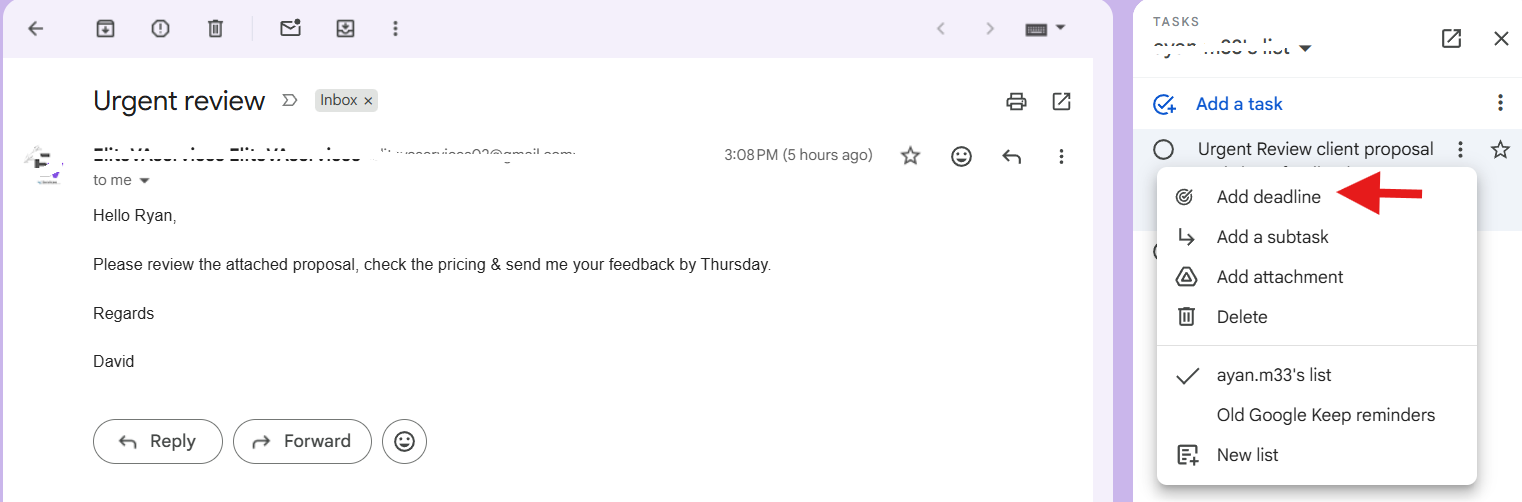
If the email contains a deadline, transfer it to a task rather than relying on your memory. You can add the deadline, check the image above.
Your task could be:
Finalize presentation and send to client
Then add the exact day when the task need to be done and the appropriate time to the task.
You can also add useful context in the task details, such as:
Client name
Contact information
Reference number
Important instructions
A short note about the expected outcome
Avoid adding the entire email into the task. Add only the information you are likely to need when completing the work.
This creates a useful separation, the email remains the source of the full conversation, while the Google Task contains the information required to take action.
Step 6: Separate Multiple Actions Into Individual Tasks
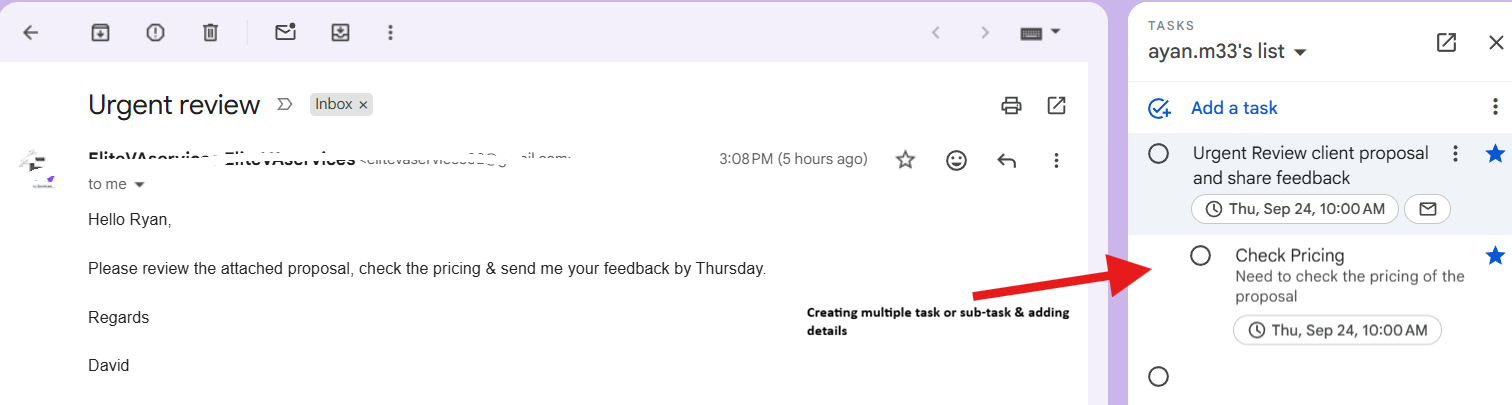
Some emails contain several requests in the same message.
Referring to the example:
“Please review the attached proposal, check the pricing, and send me your feedback by Thursday.”
Although these instructions appear in one email, they represent three different actions:
Review the proposal
Checking the pricing sheet
Providing update by Thursday
Creating one task called Review email would make it difficult to see what has actually been completed.
Instead, separate the actions when they need to be tracked independently. This is particularly useful when they have different deadlines, require different amounts of work, or can be completed at different times.
If several actions form part of one larger piece of work, you can also use subtasks to keep them organized.
Step 7: Use Gmail Snooze for Emails That Need Attention Later
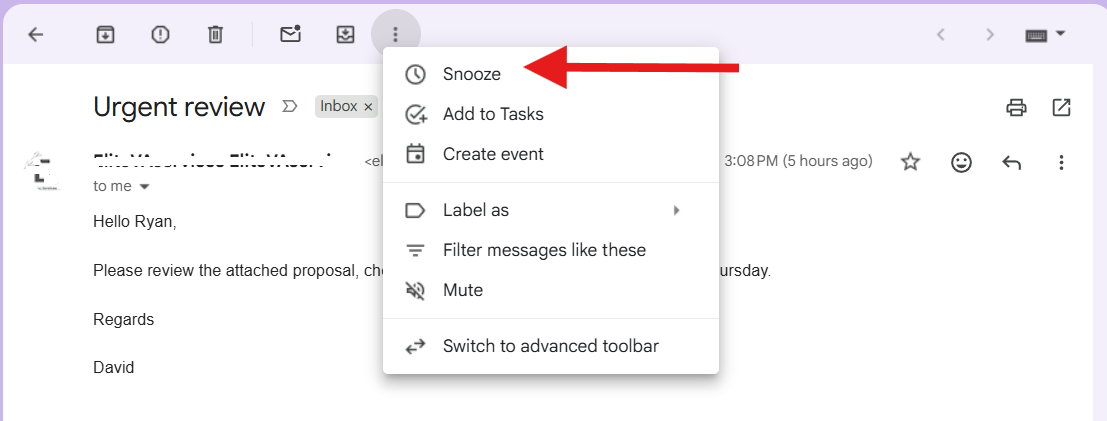
Not every email requires an immediate task.
Sometimes an email is important, but you cannot act on it until a later date. In that situation, Gmail’s Snooze feature can help keep the message out of your active inbox until you are ready to deal with it.
For example, if a supplier says:
“I will send the revised quotation next Monday.”
So you could snooze the conversation until Monday and review it when it returns to your inbox.
At that point, you can decide whether it needs to become a Google Task or not.
Use Artificial Intelligent Tools for Extracting Tasks from Gmail
Emails that have high volumes of requirements, instructions, and deadlines can make it cumbersome to identify every action at a glance. AI tools can help you extract potential tasks from the email thread and organize them into a task list before you add them to Google Tasks.
Referring to our example:
“Please review the client proposal, compare the pricing with the previous quotation, update the presentation, and send the revised version to Sarah by Thursday.”
AI can be used to identify the individual tasks:
Review the client proposal
Compare the pricing with the previous quotation
Update the presentation
Send the revised presentation to the respective person
Deadline: Thursday
You can then review these extracted tasks and add the relevant ones to Google Tasks using your judgement and analysis.
Manually Verify Before Creating Tasks
Whenever you are pulling out tasks using AI, always re-check and verify before creating the final task list. Check the original email to confirm the action, deadline, responsible person, and required context before creating the tasks.
This is especially important when emails contain names, dates, client information, or confidential business details. Use only AI tools that are approved for the type of information you are processing.
Once the tasks are verified, create separate Google Tasks when the actions need to be tracked independently. If several actions belong to one larger assignment, you can organize them using subtasks.
Sort Your Inbox & Execute Important Tasks Faster
An organized inbox should make your work easier, it should represent clearly your next actionable task. When important actions are captured and managed separately, it becomes much easier to stay on top of your workload without constantly revisiting previous emails.
A simple system for handling email-based work can reduce unnecessary searching, and help ensure that important requests receive attention at the right time.
For businesses and professionals who receive a high volume of emails every day, a virtual assistant can also manage routine inbox activities, organize incoming requests, and maintain follow-ups, so you can spend more time on priorities that require your direct involvement.